
Using Podcast Chapter Markers to Navigate Long Interviews and Documentary Episodes
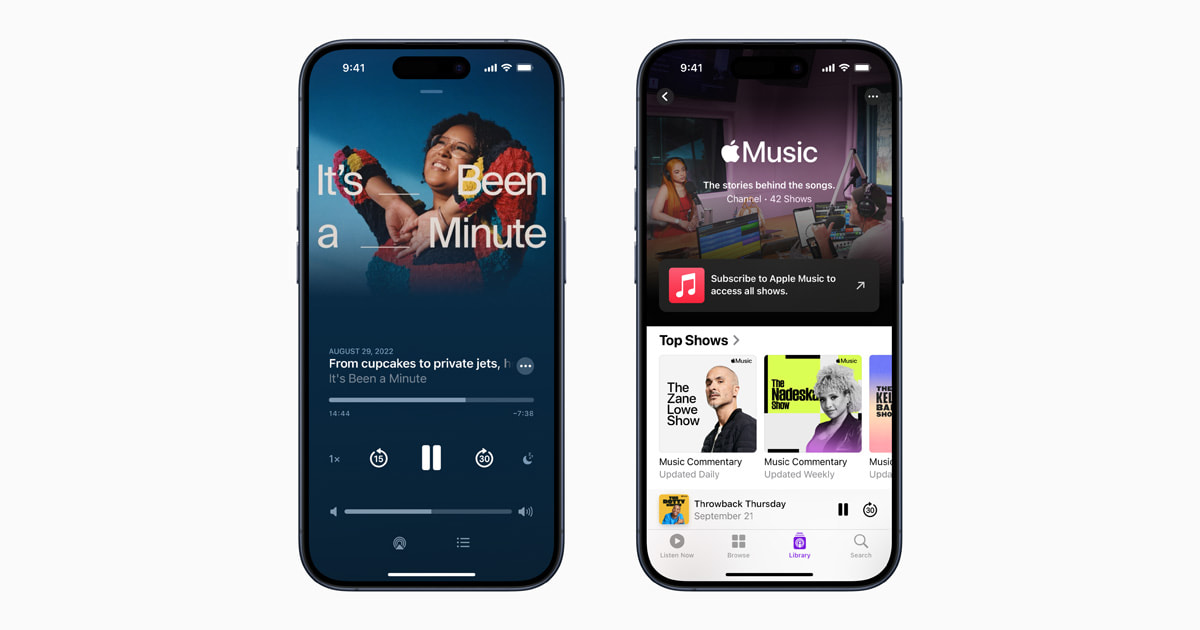
Listening to long-form audio podcasts, such as two-hour financial interviews or deep-dive documentary series, has become a popular habit in Korea. Shows like 3Pro TV (삼프로TV) or specialized tech podcasts offer incredible depth, but finding a specific topic or guest statement inside a two-hour audio file can be time-consuming.
Manually dragging your finger across a tiny progress bar often causes you to overshoot the exact segment you want to hear. Fortunately, modern podcast apps support embedded chapter markers and show notes timecodes that divide long episodes into organized, clickable sections.
This guide shows you where to find chapter navigation tools across major audio apps, how to use show notes timecodes when built-in chapters are missing, and how to optimize your playback settings to listen more efficiently.
Where to find chapter markers on Apple Podcasts, Spotify, and local Korean audio apps
Different audio applications display embedded podcast chapters in distinct areas of their player interface. Knowing where to look on your preferred app saves you from unnecessary scrubbing.
Apple Podcasts
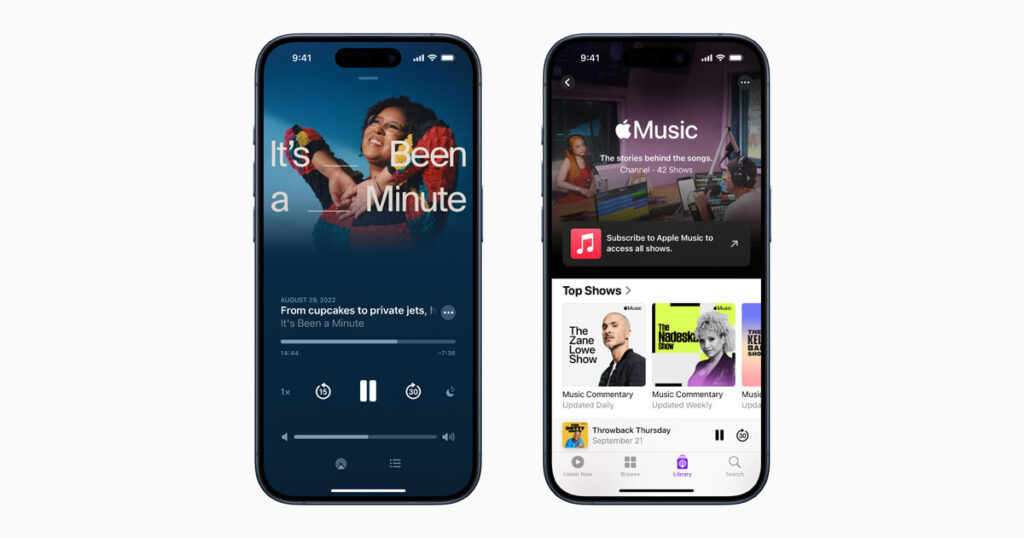
On Apple Podcasts, start playing the episode and tap the mini-player at the bottom to open the full-screen view. Below the episode title and playback controls, look for a small icon displaying three horizontal bulleted lines. Tapping this list icon slides open a dedicated chapter panel listing every segment with its title, starting time, and individual duration.
Spotify Korea
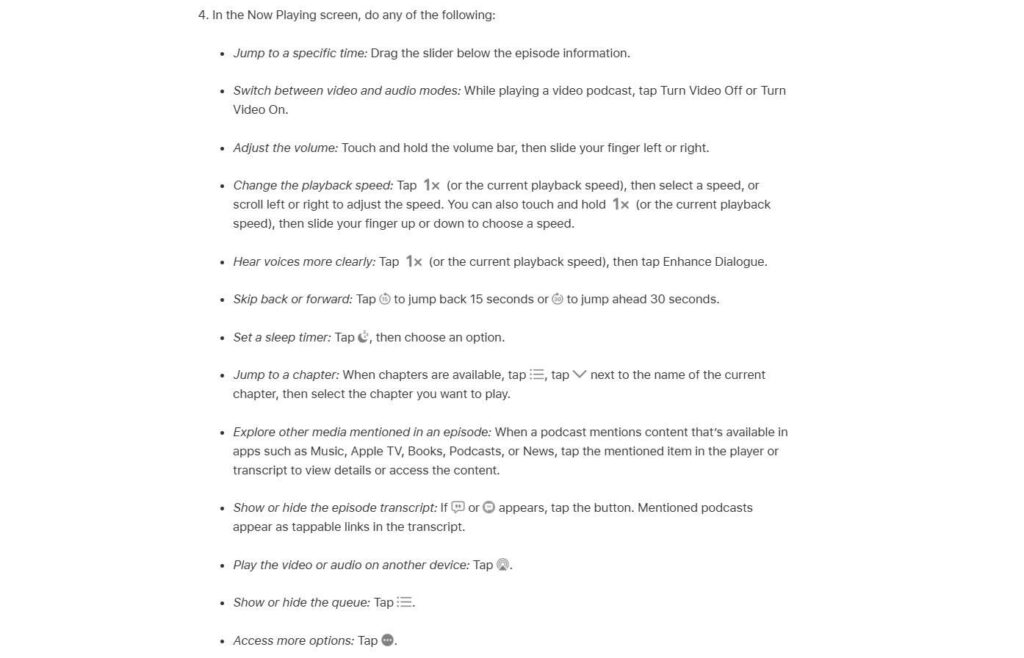
On Spotify Korea, embedded chapters appear directly on the main playback progress bar as visible segmented breaks. As the progress indicator moves across the timeline, the current chapter title updates automatically below the main album art. You can also scroll down on the now-playing screen to view a full, clickable text list of all chapters in the episode.
Local Korean apps (Podbbang and FLO)
Local Korean audio platforms like Podbbang (팟빵) and FLO (플로) host popular domestic economy and culture talk shows. While some creators embed native MP3 chapter tags, these apps frequently display topic markers inside the episode description or provide dedicated tabbed menus on the episode details screen.
How to use show notes timecodes when built-in chapter markers are missing
Not all podcast producers embed formal MP3 chapter tags (ID3 v2.3 metadata) into their audio files. When built-in chapter markers are absent, you can rely on text timecodes provided in the show notes.
Tapping hyperlinked show notes timestamps
In Korea, podcast creators frequently type a structured timestamp index directly into the episode description notes (쇼노트 타임스탬프). A typical show notes index looks like this: 12:35 [Market Outlook] or 45:20 [Tech Stock Analysis].
Major podcast players automatically convert these text timecodes into blue, clickable hyperlinks. Tapping a blue timestamp inside the show notes immediately jumps your player to that exact second in the recording.
Using manual bookmarking for generic chapter titles
Sometimes creators include chapter markers but give them vague, unhelpful labels like “Intro,” “Segment 1,” or “Interview Part A.” When faced with generic titles, tap the chapter to start playback and listen to the first 15 seconds to sample the topic. If your app supports custom bookmarks (like Pocket Casts or Overcast), pin a bookmark at the exact moment the main interview question begins for easy reference later.
Podcast app chapter navigation features: Apple Podcasts vs Spotify vs Pocket Casts
To help you choose the best audio app for navigating long-form interview content, here is how the top podcast players compare in chapter features:
| Podcast app | Chapter list UI location | Embedded MP3 tag support | Per-chapter speed control |
| Apple Podcasts | List icon on player screen | Full support (MP3 ID3) | No (Global speed only) |
| Spotify Korea | Segmented timeline & description | Full support | No (Global speed only) |
| Pocket Casts | Swipe player screen to chapter tab | Excellent support | Yes (Custom per-chapter speed & smart silence skip) |
As shown in the comparison, while default built-in apps like Apple Podcasts and Spotify handle basic chapter jumping well, power-listeners often prefer specialized players like Pocket Casts for advanced playback speed customization.
Playback settings to jump through long podcast interviews faster
Customizing your app’s playback settings allows you to navigate long documentary episodes and complex interviews with far greater speed and control.
Customizing skip interval durations
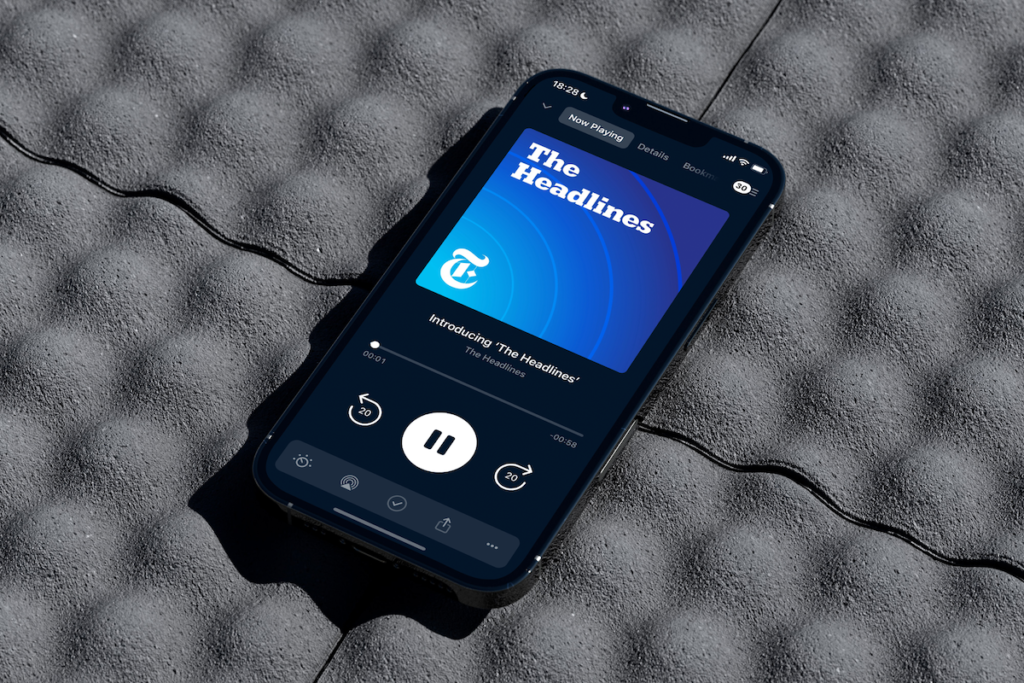
By default, most podcast apps set their skip-forward and skip-backward buttons to 15 seconds. When navigating through long 20-minute chapters, a 15-second jump is too small. Go to your app’s playback settings and change the skip-forward interval to 30 or 60 seconds. This allows you to quickly scan through a long chapter to find a specific quote without missing entire topics.
Variable chapter playback speed (배속 재생)
Not all sections of an interview require equal attention. Use variable playback speeds (배속 재생) strategically: increase the speed to 1.5x or 2.0x during introductory remarks, sponsor reads, or slow-paced chapter sections. Once the guest reaches the core analytical insight of the interview, reduce the playback speed back to 1.0x or 1.2x for maximum comprehension.